ANDROID · iOS — 메인 폰에 설치하는 스마트 보조 앱 ANDROID · iOS — The Smart Companion on Your Main Phone

내 차는 이미 훌륭합니다.
부족한 2%만 채웁니다.
Your car is already great.
We fill in the last 2%.

폰을 계기판처럼 거치해두고 보는 앱이 아닙니다.
늘 쓰는 메인 스마트폰에 설치해두면, 주머니 속에서 조용히 대기하다 꼭 필요한 순간에만 음성과 버블로 개입합니다.
Not a dashboard app you prop up on a mount.
Install it on the phone you already carry — it waits quietly in your pocket and steps in with voice and bubbles only when it matters.

📸 과속 카메라 보조📸 Speed camera alerts 🗣️ 하차 리마인더🗣️ Get-out reminders 📒 자동 차계부📒 Automatic trip log 🔄 목적지 양방향 전송🔄 Two-way destinations

소개 영상 Intro video

▶️ 영상으로 먼저 만나보세요 ▶️ Watch it in action first

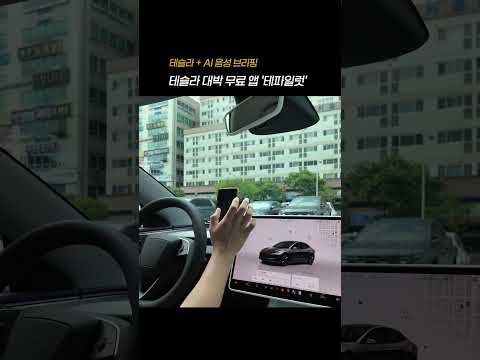
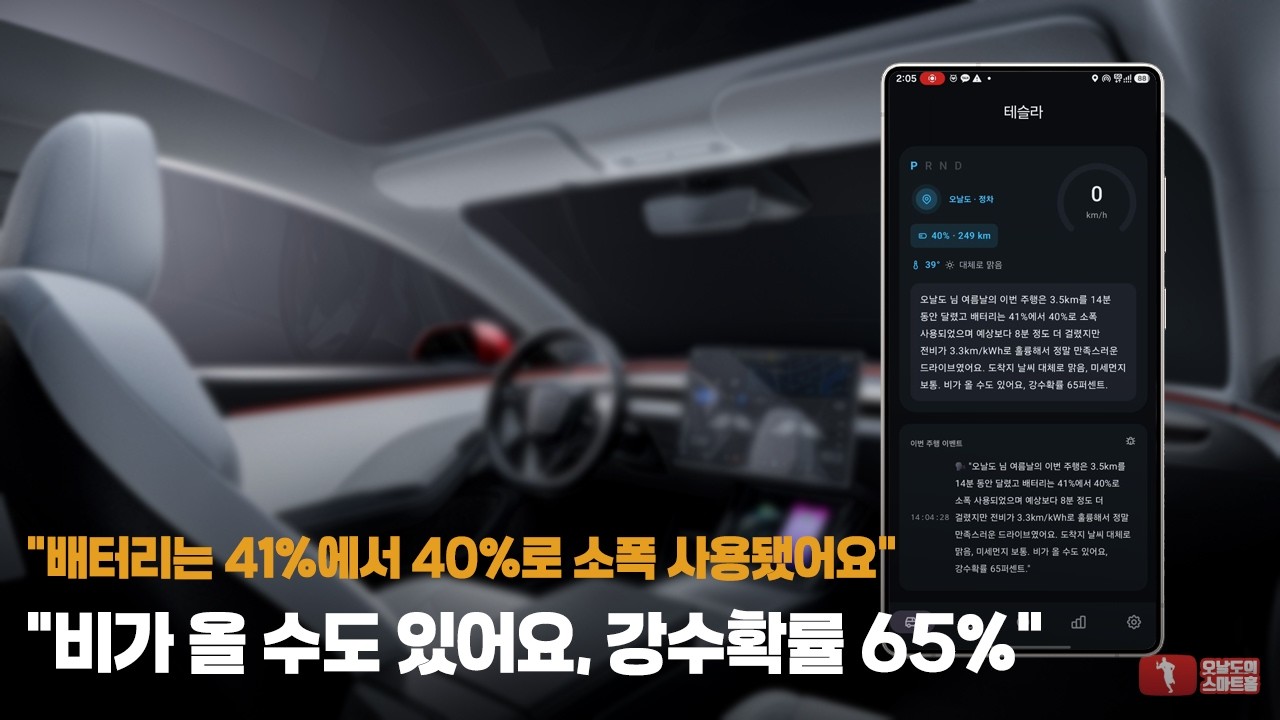
테슬라 타면서 이걸 몰라요? 테슬라와 AI의 만남, 테슬라 필수앱 '테파일럿' — 실제 화면으로 보는 소개 영상입니다. A real walkthrough of TePilot — Tesla meets AI, the must-have companion app for your Tesla.

TePilot 소개 영상 미리보기 ▶ 재생▶ Play

테파일럿 소개TePilot intro

TePilot AI 브리핑 모음 쇼츠 미리보기 ▶ 쇼츠▶ Shorts

AI 브리핑 모음AI briefing highlights

이 영상들은 IoT 유튜버 오날도님이 만들어 주셨습니다. 소개해주시고 게시를 허락해주셔서 감사합니다. These videos were made by IoT YouTuber Onaldo. Thank you for featuring TePilot and allowing us to share them here.

정체성 What it is

🎯 차를 대체하지 않습니다. 완성합니다. 🎯 We don't replace your car. We finish it.

차의 훌륭한 순정 기능은 그대로 쓰세요. 테파일럿은 그 사이에 비어 있는 자리만 조용히 메웁니다. Keep everything your car already does well. TePilot quietly fills the gaps in between.

이런 앱이 아닙니다What it isn't

  • 주행 내내 켜두고 쳐다보는 계기판 앱A gauge app you stare at all drive
  • 세컨드폰과 거치대가 있어야 쓰는 앱Something that needs a second phone and a mount
  • 순정 내비를 대체하려는 앱An attempt to replace the built-in navigation
  • 매번 열어서 기록을 입력해야 하는 앱Yet another app you open to log a trip

이런 앱입니다What it is

  • 주머니 속 메인 폰에서 백그라운드로 실행Runs in the background on the phone in your pocket
  • 폰키(BLE) 한 번 페어링하면 타고 내릴 때 알아서 구동Pair the BLE phone key once, then it just works
  • 순정 내비는 그대로, 빈틈만 보조Keeps stock navigation, fills only the gaps
  • 주차하고 나면 기록이 이미 쌓여 있음The log is already written when you park

주행 보조 On the road

📸 순정 내비는 그대로, 카메라 안내만 얹으세요 📸 Keep stock navigation — we just add the cameras

길안내는 순정 내비가 가장 편합니다. 다만 과속·구간단속 카메라 안내가 없죠. 그 부분만 테파일럿이 음성과 화면 위 버블로 채워줍니다. 화면을 볼 필요도, 앱을 열 필요도 없습니다. The car's own navigation is the most comfortable way to get around — it just doesn't warn you about speed cameras. TePilot adds exactly that, through voice and an on-screen bubble. No screen to watch, no app to open.

📷 고정식 카메라 사전 안내Fixed camera warnings

“전방에 400m 과속 단속 카메라가 있습니다.” 카메라에 닿기 한참 전에 미리 알려주니, 급브레이크를 밟을 일이 없습니다.

“Speed camera 400 m ahead.” You hear it long before you reach it, so there's no last-second braking.

🛣️ 구간단속 페이스 가이드Average-speed pace guide

구간 평균속도가 넘어가면 “지금부터 82km/h로 유지하세요”처럼 지켜야 할 목표 속도를 계산해 알려줍니다. 얼마나 줄여야 할지 눈치로 맞추지 않아도 됩니다.

If your section average creeps over the limit, it computes the exact speed to hold for the rest of the zone — no guesswork.

🔔 경고음 5종 · 음악 자동 감쇄Five alert tones, auto ducking

잔잔한 벨부터 강한 3연타까지 취향대로 고르세요. 안내가 나가는 순간 음악 볼륨은 알아서 낮아졌다 돌아옵니다.

Pick from a soft chime to a firm triple beep. Music ducks automatically while it speaks, then comes back.

AI 음성 · 자동화 AI voice & automation

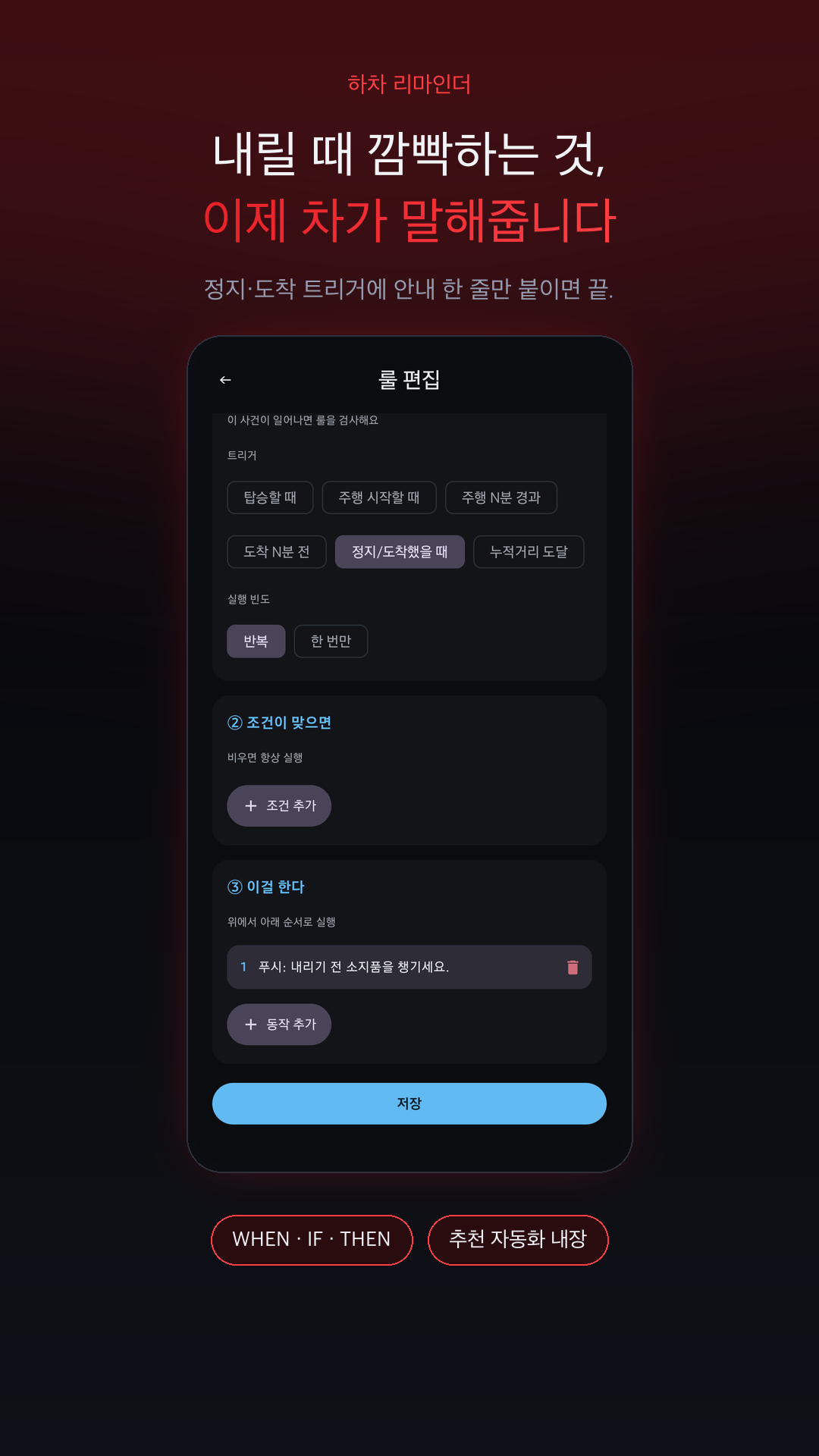
🗣️ 차에서 내릴 때마다 꼭 하나씩 깜빡하시죠? 🗣️ Always leaving one thing behind when you get out?

테파일럿의 자동화는 언제(WHEN) · 조건(IF) · 무엇을(THEN) 세 칸만 채우면 완성됩니다. 도착하는 순간의 상황을 읽고, Terry가 사람처럼 말해주는 리마인더를 직접 만들어 보세요. A TePilot automation is just three slots — WHEN, IF, THEN. Build a reminder that reads the moment you park, and let Terry say it out loud like a person would.

WHEN
정지 / 도착했을 때 When you park or arrive
IF
밖에 비가 오고 있으면 If it's raining outside
THEN
🗣 “우산 두고 내리지 마세요” 🗣 “Don't leave the umbrella”
비 오는 날 도착Arriving in the rain

“도착했어요. 밖에 비 오고 있어요 — 우산, 뒷좌석에 그대로 두고 내리실 건 아니죠?”

“You're parked. It's raining out — you weren't planning to leave that umbrella in the back seat, were you?”

마트 주차장At the grocery store

“주차 완료. 트렁크에 장바구니, 오늘은 잊지 마시고요.”

“Parked. The tote bags are in the trunk — not that you'd forget them again.”

아이 동승 후After a ride with kids

“내리기 전에 뒷좌석 한 번만 봐주세요. 소중한 건 늘 뒤에 있으니까요.”

“One last look at the back seat. The important things always sit behind you.”

야간 귀가Home at night

“집 도착. 오늘도 수고하셨어요. 폰이랑 지갑, 컵홀더 확인!”

“Home at last. Phone, wallet, and whatever's hiding in the cup holder.”

도착 트리거 + 음성 안내 = 하차 리마인더Arrival trigger + voice = a get-out reminder
AI 음성 · AI 멘트 · 호칭까지 내 마음대로Voice, phrasing, and what it calls you
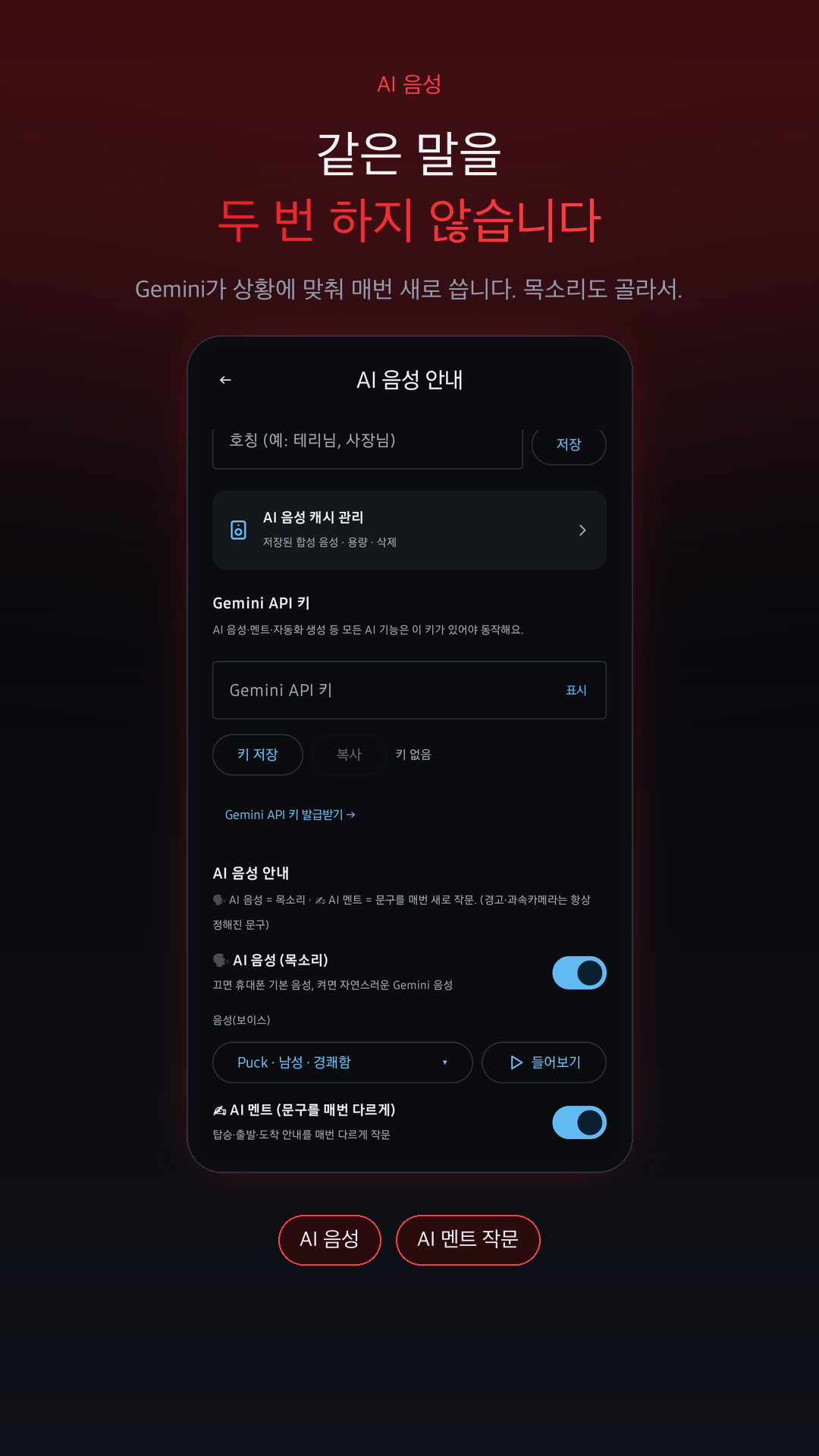
✍ AI 멘트를 켜면 Gemini가 매번 다르게 작문합니다. 같은 말을 두 번 하지 않으니, 잔소리가 아니라 안내로 들립니다. 목소리도 자연스러운 AI 음성으로 바꿀 수 있고, 나를 부르는 호칭까지 직접 정할 수 있습니다. Turn on AI phrasing and Gemini rewrites it every time. It never says the same thing twice, so it reads as guidance rather than nagging. You can switch to a natural AI voice and even choose what it calls you.

기록과 분석 Log & analytics

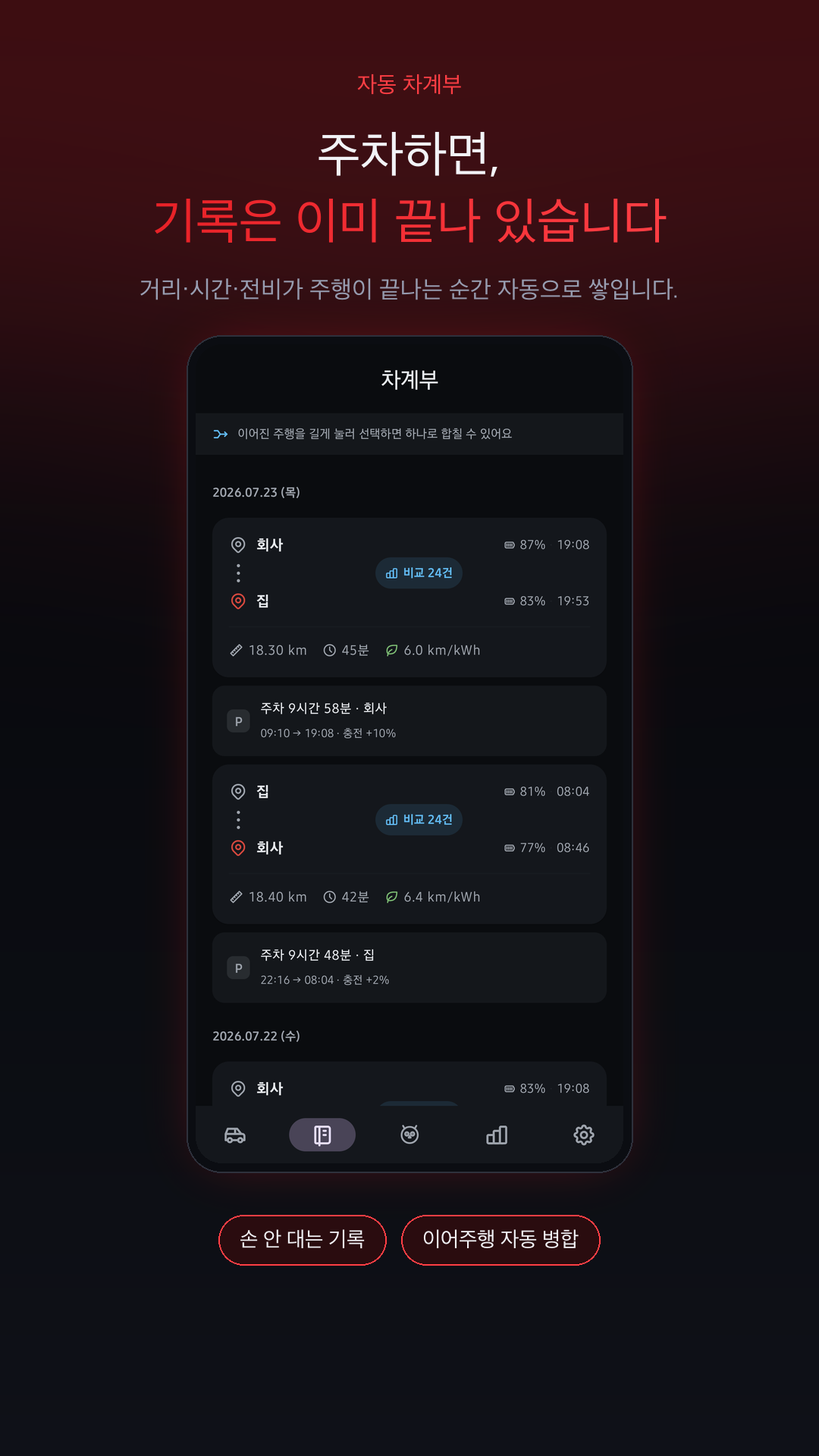
📒 주차하면, 기록은 이미 끝나 있습니다 📒 Park the car — the log is already written

거리·소요시간·전비·전기요금에 이동 경로 지도까지, 손 하나 대지 않고 쌓입니다. 그리고 매일 달리는 그 길을 과거의 나와 비교합니다. Distance, duration, efficiency, charging cost, and the route on a map — all without lifting a finger. Then it compares today's commute against every one before it.

LIVE

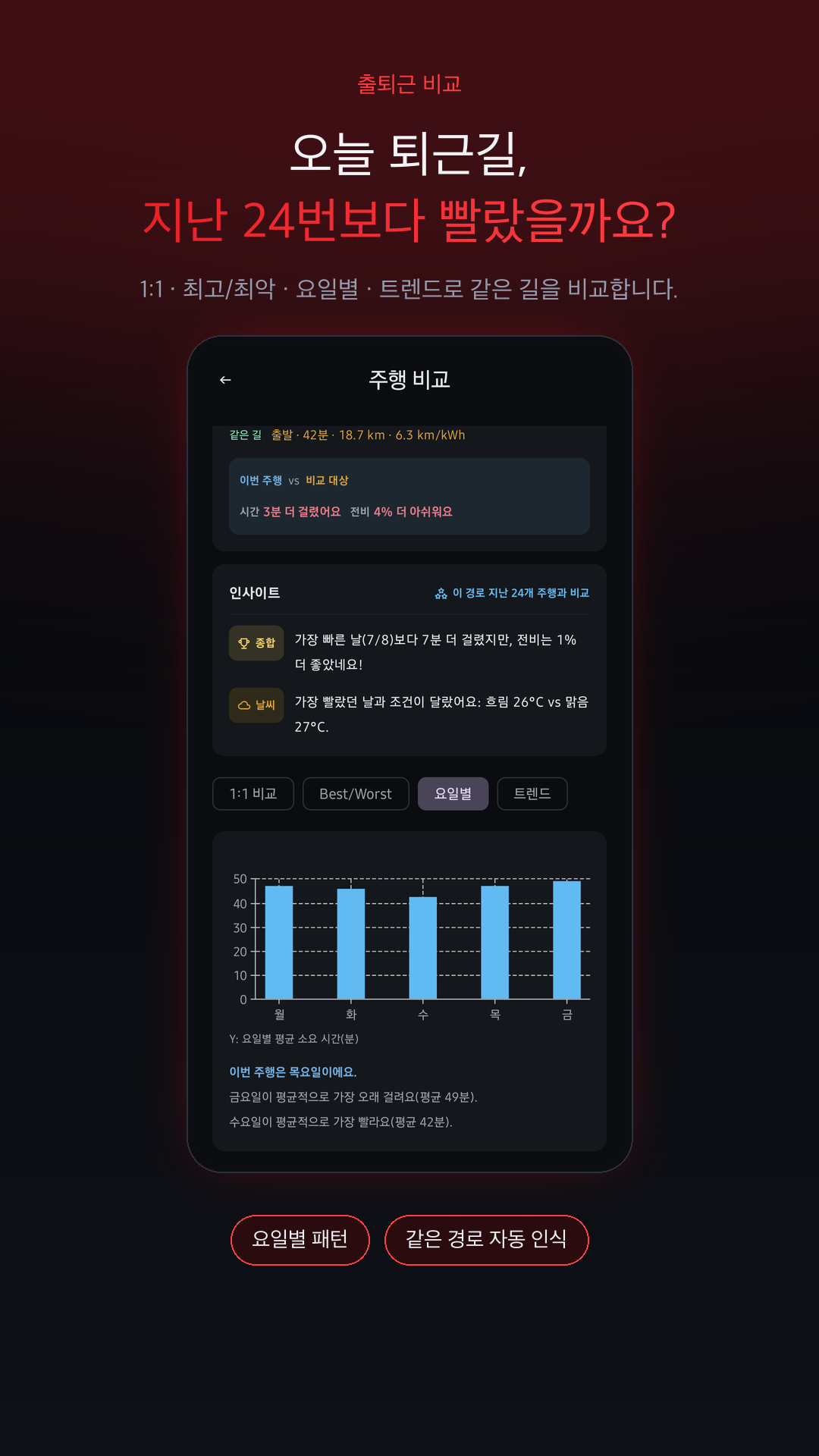
🔄 출퇴근 경로 비교Commute comparison

매일 같은 길을 달린다면, 오늘의 주행을 과거 기록과 직접 대조합니다. 1:1 비교 · 최고/최악 · 요일별 · 트렌드 네 가지 시선으로 “금요일이 평균적으로 가장 오래 걸려요”, “가장 빨랐던 날보다 7분 더 걸렸지만 전비는 더 좋았네요” 같은 인사이트를 짚어줍니다.

Drive the same route every day? Compare today against your own history — head-to-head, best/worst, by weekday, and trends — with insights like “Fridays take the longest on average.”

📒 자동 차계부Automatic trip log

주행 하나하나가 거리·전비·전기요금(원/km)·경로 지도와 함께 남습니다. 짧은 정차로 끊긴 주행은 합쳐서 정리하자고 먼저 제안하고, 기록은 내 구글 시트에도 자동 동기화됩니다.

Every trip is saved with distance, efficiency, cost per km, and its route on a map. Trips split by a short stop are offered up for merging, and everything syncs to your own Google Sheet.

🔋 배터리 SOH 자동 학습Battery health learning

충전과 주행 데이터를 바탕으로 배터리 잔여 수명(%)과 100% 환산거리를 역산해, 신차 대비 노화 상태를 조용히 추적합니다.

Estimates battery health (%) and full-charge range from your own charge and drive data, tracking degradation against day one.

❄️ 환경별 전비 팩트 체크Efficiency, fact-checked

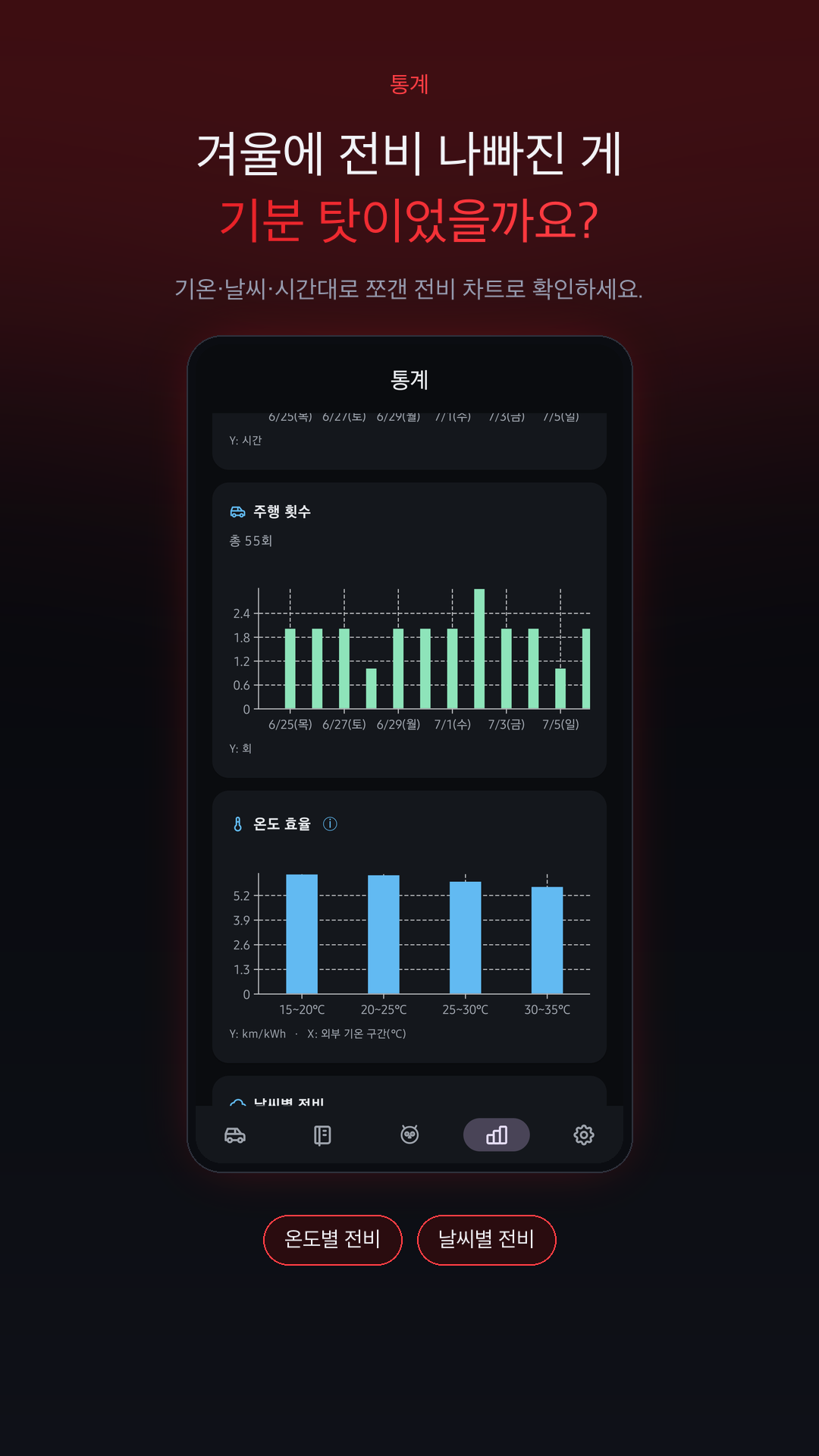
외부 기온·날씨·시간대로 쪼갠 전비 차트로, 겨울에 전비가 나빠진 게 기분 탓인지 아닌지 숫자로 확인합니다.

Charts split by outside temperature, weather, and time of day tell you whether winter really is hurting your efficiency.
차계부 상세 — 경로 지도와 전비Trip detail — route map and efficiency
통계 — 기온별 전비 팩트 체크Stats — efficiency by temperature
주행 비교 — 요일별 패턴Comparison — patterns by weekday

연결 Connectivity

🔄 목적지는 폰과 차 사이를 양방향으로 흐릅니다 🔄 Destinations flow both ways, phone ⇄ car

갈 곳을 두 번 입력하지 마세요. 폰에서 정하면 차로, 차에서 정하면 폰으로 알아서 넘어갑니다. Never type the same address twice. Set it on your phone and it lands in the car — set it in the car and it lands on your phone.

📱🚗

폰에서 차로Phone to car

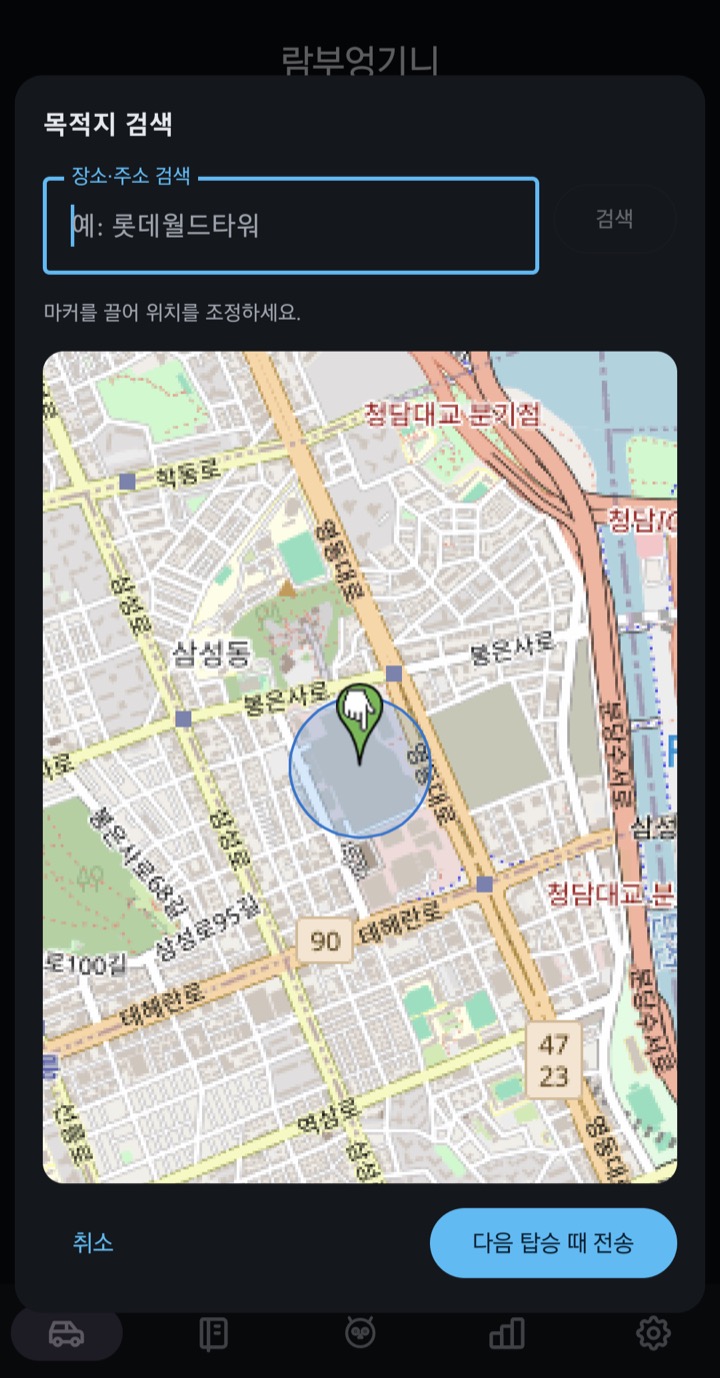
집에서 미리 갈 곳을 정해두세요. 바로 보내기로 지금 차에 띄우거나, 다음 탑승 때 보내기로 예약해두면 문을 여는 순간 목적지가 이미 찍혀 있습니다.

Pick your destination before you leave the house. Send now to push it straight to the car, or schedule it for your next ride — it's already set when you open the door.

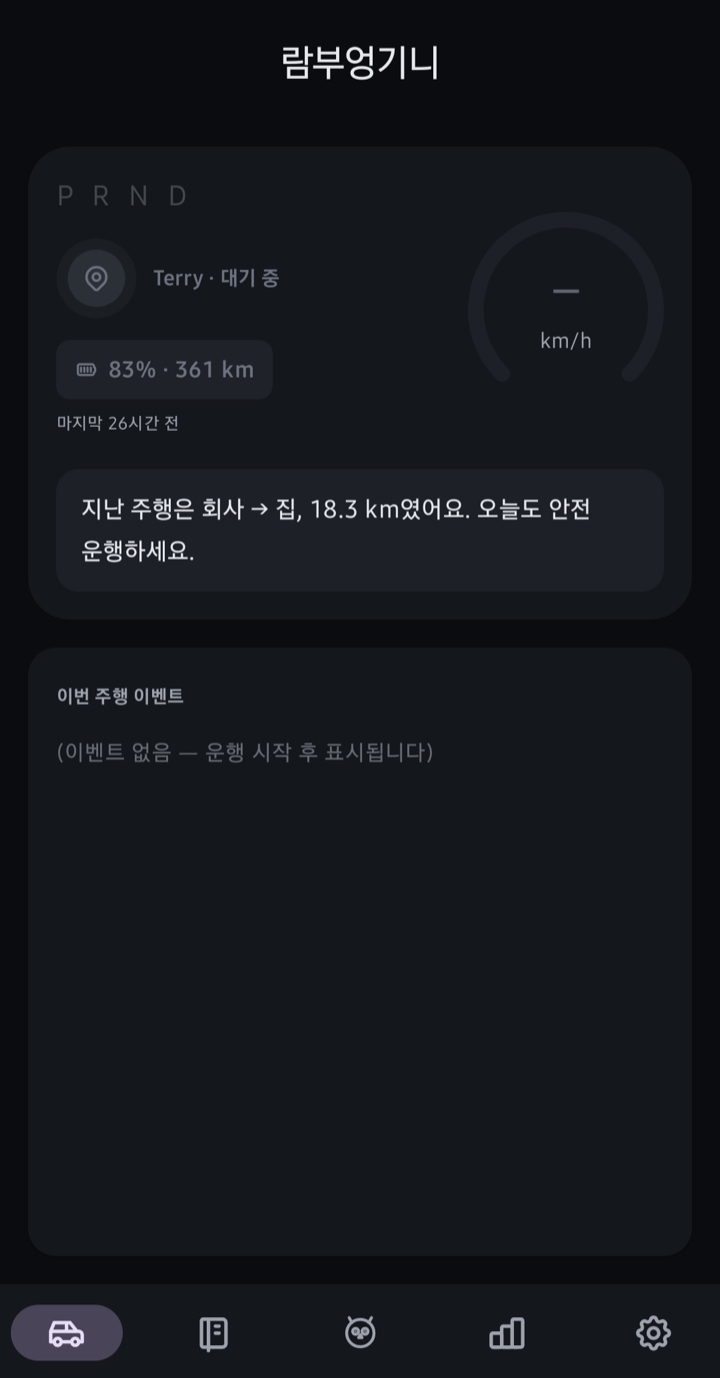
보내는 법도 간단합니다. 홈 화면 가운데 📍 위치 아이콘을 탭하면 목적지를 골라 바로 차로 보낼 수 있고, 자동화 규칙에 목적지 설정을 걸어두면 조건이 맞는 탑승 때 목적지가 자동으로 찍힙니다.

Sending is simple, too. Tap the 📍 pin icon at the center of the home screen to pick a destination and send it right away — or add a destination to an automation rule, and it's set automatically whenever the conditions match.

🚗📱

차에서 폰으로Car to phone NEW

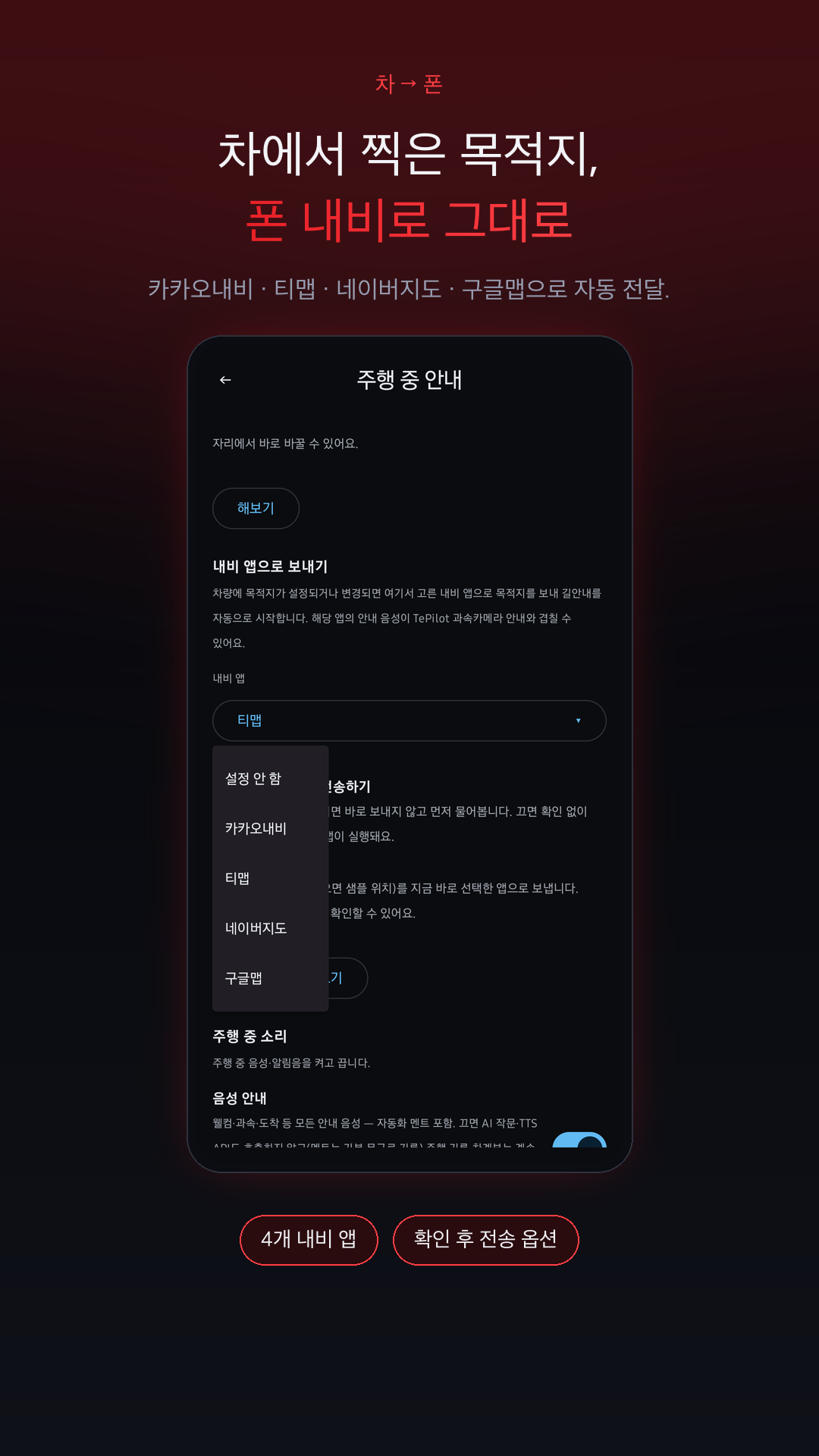
반대 방향도 됩니다. 차에서 목적지를 찍으면 폰의 카카오내비 · 티맵 · 네이버지도 · 구글맵으로 자동 전달되어 길안내가 바로 시작됩니다. 매번 “보낼까요?” 확인을 받도록 설정할 수도 있습니다.

It works the other way too. Set a destination in the car and it's forwarded to Kakao Navi, TMAP, Naver Map, or Google Maps on your phone, with guidance starting right away — or ask for a confirmation first.

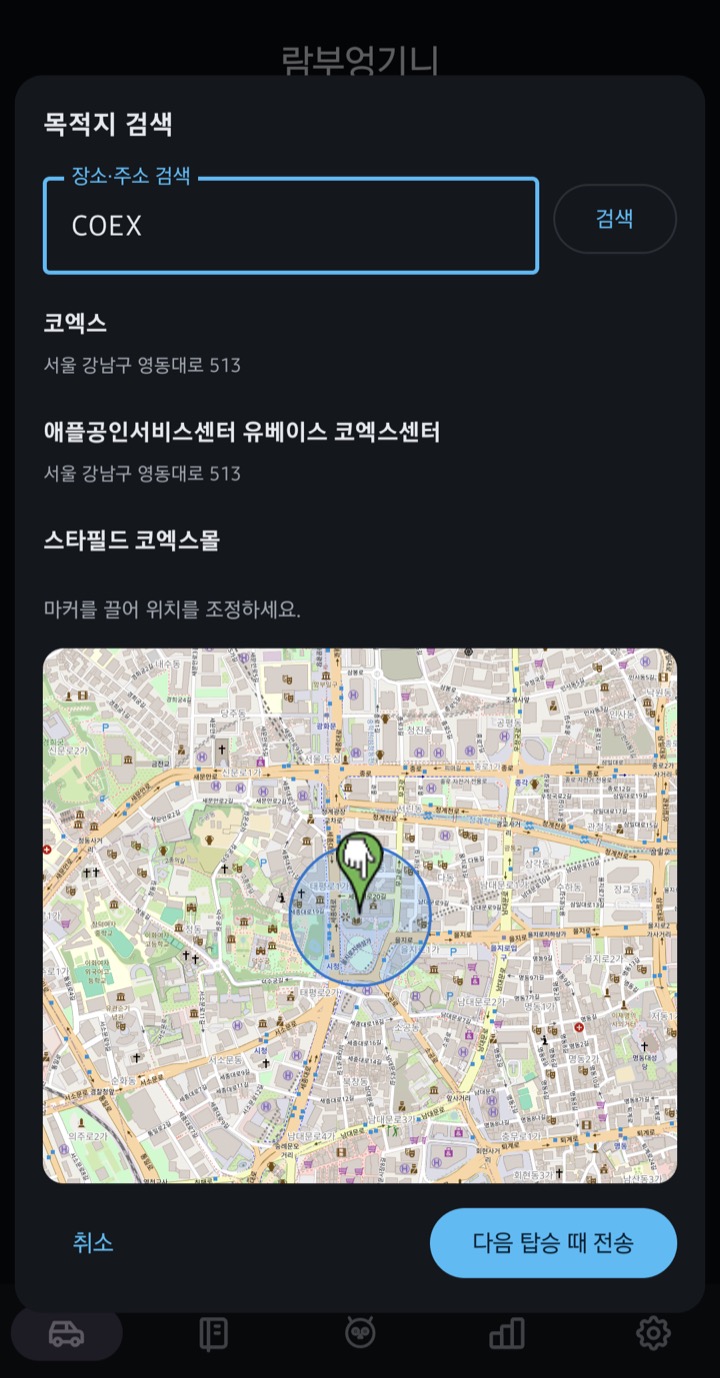
① 홈 화면의 📍 위치 아이콘을 탭① Tap the 📍 pin icon on the home screen
② 장소를 검색하거나 지도 마커로 조정② Search a place or fine-tune with the map marker
③ 전송 — 차가 자면 다음 탑승 때 자동 전송③ Send — if the car is asleep, it goes out on your next ride
내비 앱으로 보내기 — 4개 앱 중 선택Pick which navigation app receives it

시작하기 Getting Started

🚀 단 3단계로 완벽한 세팅 🚀 Perfect setup in just 3 steps

STEP 1
앱 설치 & 권한Install & Perms
스토어 설치 및 위치 항상 허용Install and 'Allow all the time' for Location
STEP 2
BLE 폰키 페어링BLE Phone Key
차량 키카드로 단 한 번 등록Register once using your Key Card
STEP 3
구동 완료All Set
이후엔 백그라운드 무자각 실행Runs seamlessly in the background

📱 iOS(아이폰) 필수 설정 — 아이폰 기본 앱 '단축어'의 자동화. iOS는 앱이 백그라운드에서 스스로 켜지는 것을 허용하지 않아, 차량 블루투스가 연결되면 '테파일럿'이 자동으로 열리도록 단축어 자동화를 한 번 등록해야 합니다. 이 설정을 하지 않으면 승차 시 앱을 매번 직접 열어야 합니다.

📹 따라 하는 영상 — 자동 실행 설정 · 안내 소리를 아이폰으로 (테파일럿 1.0.0 · iOS 26 기준, 소리 없는 영상)

먼저 확인하세요. 단축어 앱에서 '테파일럿'을 검색하면 아무것도 나오지 않습니다. 테파일럿이 단축어 동작을 따로 제공하는 것이 아니라, 단축어의 '자동화''앱 열기' 동작을 넣고 그 동작이 열 앱으로 테파일럿을 고르는 방식입니다. 여기서 말하는 '자동화'는 단축어 앱 아래의 '자동화' 탭이며, 테파일럿 앱 안의 '자동화' 탭과는 다른 기능입니다. 앱 이름은 1.0.0부터 한국어 '테파일럿', 영어 'TePilot'으로 표시됩니다.

  1. '단축어' 앱 → 화면 아래 '자동화' 탭 → 오른쪽 위
  2. 트리거 목록을 아래로 내려 'Bluetooth'를 고릅니다 — 한국어 아이폰에서도 이 항목만 영문으로 나옵니다
  3. '기기' 줄 오른쪽 '선택' → 차량 블루투스 이름(예: Model 3, Model Y) 체크
  4. '연결될 때' + '즉시 실행' 선택 — '확인 후 실행'으로 두면 탈 때마다 확인을 눌러야 합니다
  5. '다음' → '새로운 단축어 생성'
  6. '동작 검색'에 '대기' 입력해 추가 → 파란 '1초'를 눌러 +로 2초까지 올립니다 (동작이 씹히는 걸 줄여줍니다)
  7. 다시 '동작 검색'에 '앱 열기' 입력해 추가 — 이 검색창에 '테파일럿'을 넣으면 안 나옵니다
  8. 동작 안의 파란 글씨 '앱' 자리를 눌러 '테파일럿' 선택
  9. (선택) 안내 소리를 폰에서 내려면 '동작 검색'에 '재생 대상' 입력 → 목록의 '재생 대상 변경' 추가 → 카드가 '재생 대상 설정 : iPhone'인지 확인 (기본값이 이미 iPhone입니다)
  10. 오른쪽 위 저장()

위 화면과 메뉴명은 테파일럿 1.0.0 · iOS 26 기준입니다. 다른 버전에서는 조금 다를 수 있습니다. 더 자세한 안내와 문제 해결은 FAQ에 있습니다.

📱 iOS (iPhone) required setup — an automation in Apple's built-in Shortcuts app. iOS doesn't allow apps to launch themselves in the background, so you must create one Shortcuts automation that opens TePilot when your car's Bluetooth connects. Without it, you'll need to open the app manually every time you get in.

📹 Walkthrough videos — auto-open setup · routing guidance to the iPhone (TePilot 1.0.0 on iOS 26, no audio)

Read this first. Searching for "TePilot" inside the Shortcuts app returns nothing. TePilot doesn't ship its own Shortcuts actions — you add the built-in Open App action to a Shortcuts automation and pick TePilot as the app that action opens. "Automation" here means the Automation tab at the bottom of the Shortcuts app, not the Automation tab inside the TePilot app. Since 1.0.0 the app is named TePilot in English and 테파일럿 in Korean.

  1. Shortcuts app → Automation tab at the bottom → at the top right
  2. Scroll the trigger list and pick Bluetooth
  3. DeviceChoose → check your car's Bluetooth name (e.g. Model 3, Model Y)
  4. Select Is Connected + Run Immediately — Run After Confirmation makes you tap a prompt every time
  5. NextNew Blank Shortcut
  6. Search Wait, add it, then raise it to 2 seconds with the blue "1 second" stepper (reduces the action getting dropped)
  7. Search "Open App" and add it — typing "TePilot" in this search field finds nothing
  8. Tap the blue App placeholder inside it and pick TePilot
  9. (Optional) To hear guidance from the phone: search "playback", add Change Playback Destination, and check the card reads "Set playback destination to iPhone" (iPhone is already the default)
  10. Save with the button at the top right

Screens and menu names above follow TePilot 1.0.0 on iOS 26 — other versions may differ slightly. More detail and troubleshooting on the FAQ.

🤖 안드로이드(갤럭시) — 차 인앱 뮤직을 켠 채로 안내만 폰에서 듣고 싶다면. 차량 인앱 뮤직·라디오를 재생 중이면 폰에서 블루투스로 나가는 소리가 막힙니다. 갤럭시 '모드 및 루틴'으로 테파일럿 소리만 폰에서 따로 나오게 할 수 있습니다.

📹 따라 하는 영상 — 앱 소리 분리 재생 루틴 만들기 (테파일럿 1.0.0 · 갤럭시 '모드 및 루틴' 기준, 소리 없는 영상). '모드 및 루틴'은 삼성 갤럭시 기능이라 다른 제조사 폰에는 같은 메뉴가 없을 수 있습니다.

자주 틀리는 곳: 정확한 이름은 '앱 소리 분리 재생'입니다('앱 분리 재생' 아님). '모드' 탭이 아니라 '루틴' 탭이고, 모드 안에는 이 항목이 아예 없습니다.

  1. 설정 → 모드 및 루틴 → 아래 '루틴' 탭 → 오른쪽 위
  2. '이 루틴이 시작되는 조건 추가하기' → '연결' 그룹의 '블루투스 기기'
  3. 내 차량을 고르고 '연결되면' 선택 → 완료
  4. '이 루틴으로 실행할 동작 추가하기' → '소리 및 진동' → '앱 소리 분리 재생'
  5. '애플리케이션'에서 테파일럿 검색·체크 → 완료
  6. '오디오 기기'를 '폰'으로 → 완료 — 여기가 핵심입니다
  7. (선택) 안내 음량을 고정하려면 같은 목록의 '미디어 음량'을 하나 더 넣습니다
  8. 오른쪽 위 '저장'

만들어 둔 루틴을 그대로 받아 트리거 기기만 본인 차량으로 바꿔 쓰실 수도 있습니다: 루틴 파일 내려받기. 더 자세한 안내는 FAQ에 있습니다.

🤖 Android (Galaxy) — hear TePilot's guidance from your phone while keeping the car's built-in music on. While the car's built-in music or radio is playing, audio sent from your phone over Bluetooth won't play. Galaxy's "Modes and Routines" can route only TePilot's sound to the phone.

📹 Walkthrough video — building the Separate App Sound routine (TePilot 1.0.0 on Galaxy "Modes and Routines", no audio). This is a Samsung feature, so other manufacturers' phones may not have the same menu.

  1. Settings → Modes and Routines → Routines tab → at the top right
  2. Add a condition that starts this routine → Connections → Bluetooth device
  3. Pick your car and select When connected → Done
  4. Add an action → Sounds and vibration → Separate app sound
  5. Search TePilot under Application, tick it → Done
  6. Set Audio device to Phone → Done — this is the key step
  7. (Optional) Add Media volume from the same list to pin the guidance volume
  8. Tap Save

You can also import a ready-made routine and just swap the trigger device for your own car: download the routine file. More detail on the FAQ.

로드맵 Roadmap

🛣️ 앞으로의 TePilot 🛣️ Future of TePilot

🏠 스마트싱스 연동SmartThings 드라이버 개발 완료Driver built

차량 연동 엣지 드라이버(Edge Driver) 개발은 이미 끝났습니다. 여러 집·여러 환경에서 안전하게 돌아가도록 다듬는 중이라, 배포 준비가 되는 대로 공개하겠습니다.

The vehicle Edge Driver is already built. We're polishing it to run safely across different homes and setups, and will release it once it's ready for everyone.

솔직한 안내 — 멀티 기기 환경. 한 계정을 여러 기기에서 동시에 쓰는 경우는 아직 테스트가 충분하지 않아 원활하지 않을 수 있습니다. 현재는 주로 쓰는 폰 한 대에서 사용하시길 권해드리며, 다중 기기 지원도 계속 다듬고 있습니다. An honest note on multiple devices. Using one account across several devices at once isn't fully tested yet and may not run smoothly. For now we recommend a single primary phone — multi-device support is actively being improved.
💬 FAQFAQ